
There are certain bits of tech that I don’t get particularly excited about replacing. A mouse is usually one of them. Keyboards? Absolutely. I’ll happily spend far too long comparing switches and keycap profiles like somebody conducting important scientific research. Monitors? Don’t get me started. I can lose an afternoon convincing myself I need even more pixels.
A mouse, though? A mouse is supposed to quietly get on with its job. If it moves the cursor around, clicks on things when I ask it to and doesn’t suddenly decide Bluetooth connectivity is an optional feature, I’m generally happy. Or at least I thought I was.
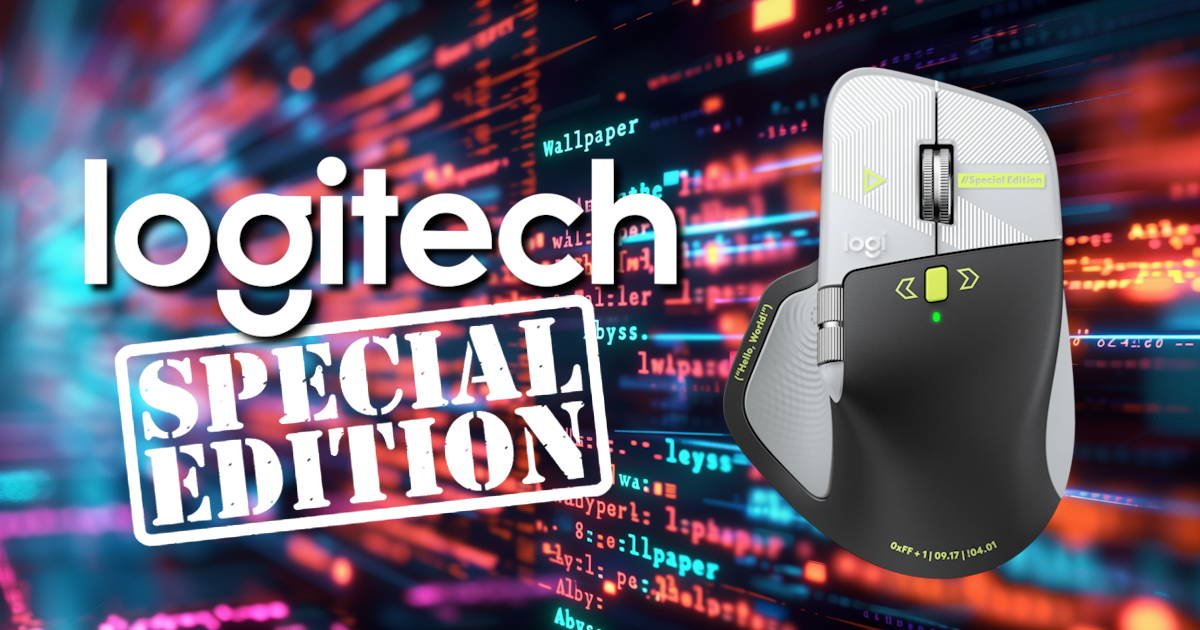
Then I started using the Logitech MX Master 4 Special Edition – Developer, and my expectations became slightly unreasonable.
This mouse has haptic feedback. It has a customisable Actions Ring that places shortcuts around your cursor. It has a second scroll wheel, an 8,000 DPI Darkfield sensor that can track on glass, and Logitech claims the battery can last up to 70 days between charges. And I believe them, I’ve not been using it for quite that many days, but I’ve still not had to charge it, and there is plenty of battery left.
At some point you have to ask whether we’re still talking about a mouse or a tiny productivity computer that happens to live under your right hand. Honestly, I’m still not completely sure.
The strange thing is that none of those features sounds particularly exciting on their own. A few months ago, if someone enthusiastically explained mouse haptics to me, I’d probably have nodded politely while wondering whether they needed another hobby. Now I’m the person enthusiastically explaining mouse haptics. Life comes at you fast.
What surprised me most about the Logitech MX Master 4 Special Edition – Developer is how quickly all those little features disappear into your daily routine. You stop thinking about the technology and start noticing the small frustrations it quietly removes. Scrolling feels better. Switching desktops feels quicker. Moving between multiple monitors feels smoother.
And that becomes obvious the second you pick it up.
First impressions
The MX Master line has always had a very particular look. Iconic, if you will. It isn’t trying to be a gaming mouse covered in RGB lighting, honeycomb cut-outs and enough buttons to launch a small aircraft. This is very obviously built for work. Serious work. The sort of work that involves multiple monitors, endless browser tabs and having at least one application open that you’re pretending you’ll get around to using properly one day.
And perhaps specifically for the kind of person whose workday involves 37 browser tabs, three spreadsheets, Teams, Photoshop, a half-finished email and something they’ve been meaning to reply to since Tuesday… So… me.
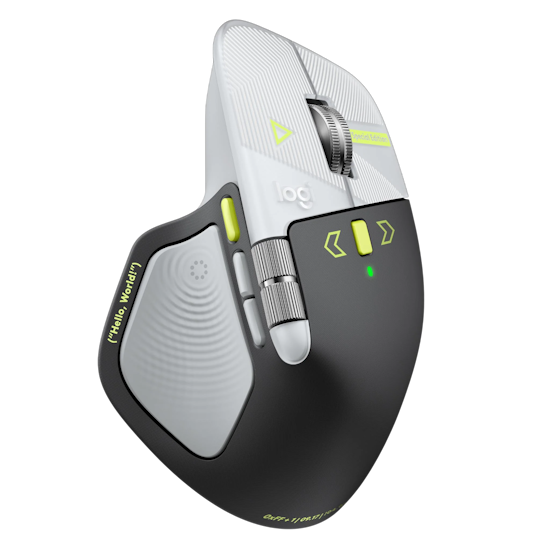
The Logitech MX Master 4 Special Edition – Developer keeps the familiar sculpted shape of the range, measuring 128.15 x 88.35 x 50.8mm and weighing around 150g. That’s quite hefty by modern mouse standards, but I actually like it. It feels planted on the desk rather than something I’m going to accidentally send flying during a crazy game of Farlight 84 or an enthusiastic Excel session. Which, admittedly, doesn’t happen often.
The extra weight gives it a sense of quality too. Picking it up, it feels dense and purposeful. Not heavy in a tiring way. More like the difference between a cheap office chair and one that immediately makes you sit there and think, “Ah. That’s where the money went.”
The shape naturally encourages a relaxed hand position, with a large thumb rest and controls that fall exactly where you’d expect them to. Logitech has spent years refining the MX Master formula, and it shows. Within a few minutes, the Logitech MX Master 4 Special Edition – Developer felt familiar, even though it packs in more controls than most productivity mice.
The thumb wheel, gesture button and various shortcuts all sit within easy reach without making the mouse feel cluttered. That’s harder to get right than it sounds. Plenty of feature-packed mice end up feeling like somebody glued extra buttons on at the last minute and hoped for the best. Not here.
What surprised me most was how quickly my hand settled into the shape. After a full day of work, I never found myself thinking about the mouse. There’s no adjustment period where you’re constantly repositioning your grip or accidentally pressing the wrong button. You simply get on with your day. And considering my days often involve writing, image editing, web browsing and bouncing between windows every few seconds, that’s no small achievement.
The soft-touch finish helps as well. It feels premium without becoming a fingerprint collection device, something that seems oddly difficult for manufacturers to achieve. I’ve used plenty of expensive peripherals that looked like they’d witnessed a crime scene after a few hours of use. Thankfully, this isn’t one of them.
As with previous MX Master models, though, this is very much a right-handed mouse. Left-handed users remain outside the MX Master club, staring through the window while the rest of us enjoy the fancy scroll wheels and haptics. It’s a shame, but it’s also the reality of the design.
For everyone else, though, the Logitech MX Master 4 Special Edition – Developer feels immediately familiar, comfortably premium and impressively refined. It doesn’t make a dramatic first impression. It doesn’t need to. Instead, it quietly gives off the confidence of a product that’s been iterated on for years and knows exactly what it’s supposed to be.
After a few hours, I found myself paying less attention to the mouse itself and more attention to the work I was doing. And for a productivity mouse, that’s what you want!
The scroll wheel remains ridiculously satisfying
I need to talk about the MagSpeed wheel.
Yes, we’re discussing a scroll wheel. No, I haven’t completely run out of things to write about.
The thing is, the scroll wheel on the Logitech MX Master 4 Special Edition – Developer is genuinely one of its best features. Which sounds absurd until you’ve actually used it for a few days and then gone back to a normal mouse. The wheel can move between precise ratcheted scrolling and that glorious free-spinning mode where you give it a flick and suddenly find yourself somewhere around row 9,452 of your spreadsheet. Or the bottom of a document you hadn’t realised was quite that long.
The MagSpeed wheel itself is machined from steel and uses an electromagnetic system to switch between those scrolling modes almost instantly. There’s no clunky mechanical changeover happening in the background. It just seems to know when you’re scrolling carefully and when you’re trying to reach the other side of the internet as quickly as possible. Logitech says it can scroll through up to 1,000 lines per second.
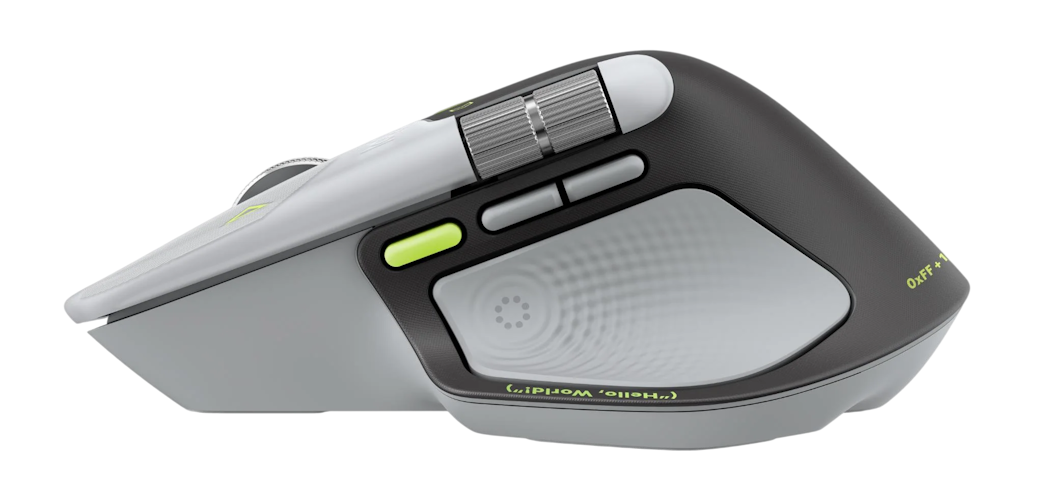
Whether anyone genuinely needs to scroll through 1,000 lines in a second is another matter entirely, but I’m glad the technology exists. Sometimes it’s the principle of the thing.
What surprised me most is how natural it feels. Ratcheted mode provides enough resistance to make precise navigation easy, whether you’re scrolling through code, documents or web pages. Then, when you’re moving quickly through larger files, the wheel suddenly feels almost frictionless. It’s one of those features that sounds small on paper and then quietly becomes something you use dozens, if not hundreds, of times every day. And because this is a productivity mouse, that’s exactly where the value is.
There’s also the horizontal thumb wheel, which I probably ignored more than I should have initially. I think that’s because most people naturally understand vertical scrolling. Horizontal scrolling sounds weirdly specific until you realise just how many modern applications stretch sideways rather than down.
If you’re working with timelines, video editing software, wide spreadsheets or anything else that likes sprawling across multiple monitors, it quickly makes sense. I found myself using it constantly in Excel and Camtasia, my editing software, and after a while it became second nature. That’s usually the sign of a good feature. You stop noticing you’re using it.
Once you’ve got used to having that second wheel under your thumb, moving back to a mouse without one feels strangely primitive. Suddenly you’re reaching for Shift + Mouse Wheel, awkward scroll bars or trackpad gestures that never quite feel as natural. It’s a bit like having a second monitor. You don’t think it’s necessary until you have it. Then somebody takes it away and you spend the next week mildly annoyed at everything.
The haptics are the interesting bit
The headline addition to the Logitech MX Master 4 Special Edition – Developer is the new Haptic Sense Panel, and I’ll admit I wasn’t convinced at first.
Haptic feedback in a productivity mouse sounds a little gimmicky when you say it out loud. It’s the sort of feature that sounds clever during a product presentation but then gets quietly switched off three days later because nobody actually wants their mouse buzzing at them all day. Except I actually liked it.
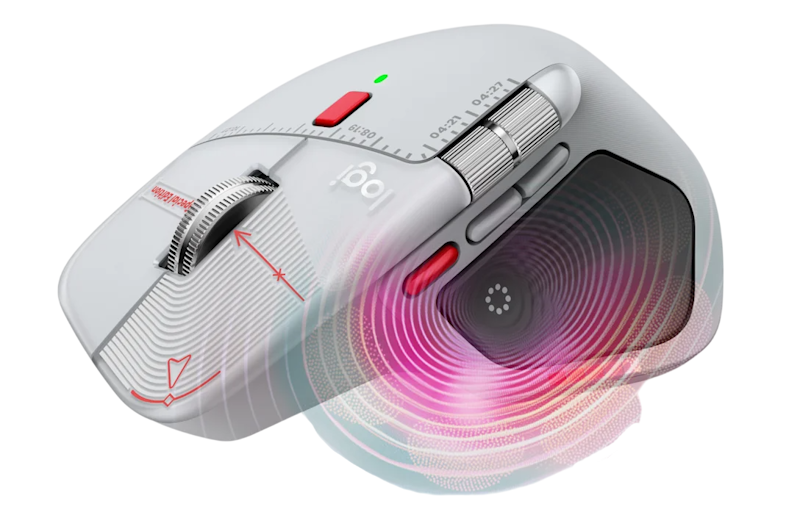
The MX Master 4 can provide subtle physical feedback for actions like switching desktops, adjusting sliders, snapping windows into position, receiving notifications and triggering custom shortcuts, with the intensity fully adjustable through Logi Options+. Crucially, the feedback is restrained. You don’t get an aggressive vibration every time something happens. Instead, there’s a small, deliberate bump that confirms an action has taken place.
And that tiny detail makes a bigger difference than I expected.
When you’re moving between virtual desktops (I use 2 at work), lining objects up or managing windows, the feedback adds a sense of physical confirmation that makes interactions feel more deliberate. Nothing fundamentally changes. You’re still performing the same tasks. They just feel a little more connected.
That’s especially true on Windows 11, where Logitech supports native Advanced Haptics integration for compatible applications and window management features, provided you’re running a recent Windows update.
The best compliment I can give the haptics is that I started noticing when they weren’t there. After a few days with the Logitech MX Master 4 Special Edition – Developer, going back to my workplace mouse felt strangely flat. It’s a subtle feature, but it’s probably the one that most clearly separates this generation from being another routine MX Master refinement.
I never expected mouse haptics to become one of my favourite features. Yet here we are.
Apparently, I’m now a person with strong opinions about tactile feedback in productivity mice.
There’s now a shortcut menu living inside your mouse
Then there’s the Actions Ring.
Press the dedicated control and a radial menu appears around your cursor, giving you quick access to shortcuts, commands and commonly used actions.
On paper, it sounded like exactly the sort of feature I’d try once, think “that’s neat,” and then completely forget existed. I didn’t.
The clever part is that the Actions Ring on the Logitech MX Master 4 Special Edition – Developer is fully customisable through Logi Options+, including app-specific shortcuts and plugins. The ring can change depending on the application you’re using, allowing the mouse to adapt to whatever you’re working on.
Maybe you’re editing images and want your favourite tools close at hand. Maybe you’re navigating documents all day. Maybe you live inside Excel and have simply accepted that this is your life now. No judgement.
You can configure the Actions Ring around that workflow, and once you’ve spent a little time setting it up, it starts to feel surprisingly natural.
Logitech claims its testing showed Actions Ring shortcuts could save users up to 33% of their time across eight desktop actions while reducing mouse movement by up to 63%. That comes from a 2025 Logitech Ergo Lab study involving 37 MX Master users, so I’d treat those figures as Logitech’s own controlled testing rather than a guarantee that you’ll somehow finish work by 2:47 pm every afternoon.
Sadly. For me, the real benefit is simpler. It cuts out tiny repetitive actions. The kind you barely notice individually but perform dozens of times every day. Switching tools, opening menus, jumping between functions. None of it feels revolutionary. But after you’ve saved yourself the same little movement fifty times in a single day, it starts making a lot more sense.
Before long, the Actions Ring stops feeling like a fancy extra feature and starts feeling like something that should have been there all along. And that’s usually a sign that Logitech got it right.
An 8K sensor seems excessive. I’ll take it.
Underneath, the Logitech MX Master 4 Special Edition – Developer uses Logitech’s Darkfield high-precision sensor with an adjustable sensitivity range from 200 to 8,000 DPI.
That’s a huge amount of sensitivity for a productivity mouse.
You’re probably not going to crank it to 8,000 DPI and start snapping between Excel cells like you’re competing in a Counter-Strike tournament. At least, I hope you’re not. That being said, there is a World Excel championship, so maybe?
But having the range is genuinely useful, particularly if you’re running multiple displays, an ultrawide monitor or one of those increasingly common high-resolution setups where a standard mouse cursor seems to take a weekend holiday every time it needs to cross the screen. I’ve been using the mouse across multiple displays, and being able to fine-tune the sensitivity makes a noticeable difference. A setting that feels perfect on a single 27-inch monitor can suddenly feel sluggish on my dual 32-inch ones.
The nice thing is that the Logitech MX Master 4 Special Edition – Developer gives you plenty of room to find that sweet spot. You don’t need to use all 8,000 DPI. It’s simply there if you want it. And honestly, I’d rather have the option than discover the ceiling five minutes after plugging it in.
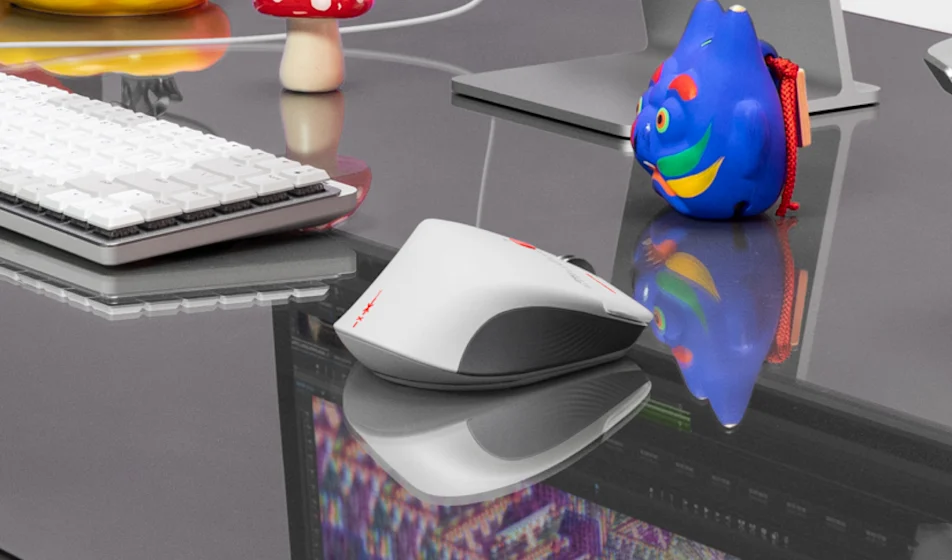
The Darkfield sensor can also track on glass, provided the surface meets Logitech’s minimum 4mm thickness requirement. Which my glass coffee table seems to meet. That’s one of those features that doesn’t sound terribly exciting until you’re working somewhere with a glass desk and realise your normal mouse is having a small existential crisis. Most mice encounter a transparent surface and immediately start questioning reality.
The MX Master 4 just gets on with the job.
It’s also one of those rare features that you don’t think about until you need it. Maybe you’re working from a meeting room, a hotel desk or a shared workspace. Maybe you’ve found yourself balancing a laptop on whatever vaguely flat surface happens to be nearby that day. The sensor simply works. And that’s really the best thing I can say about it.
You don’t spend your day admiring a mouse sensor. You spend your day forgetting it exists because the cursor goes exactly where you expect it to, every single time. The Logitech MX Master 4 Special Edition – Developer delivers that kind of confidence, which is probably more important than any DPI number printed on the box.
Quiet clicks make more difference than I’d expected
The clicks are quiet. Which sounds like a tiny thing, and honestly, it is. But I like it.
The Logitech MX Master 4 Special Edition – Developer uses Logitech’s Quiet Click technology, and after a few days of use, I found myself appreciating it more than I expected. It’s one of those features that barely registers on a spec sheet but becomes surprisingly noticeable in everyday use.
If you’re working in an office, a shared workspace, or even just sitting next to someone who’s trying to concentrate, removing the constant click-click-click soundtrack makes everything feel a little calmer. It’s not completely silent, nor should it be. There’s still enough tactile feedback to let you know a button press has registered. That’s important.
I’ve used completely silent mice before, and they always feel slightly unsettling. You click a button and spend half a second wondering whether the mouse actually received the instruction or if you’ve somehow forgotten how clicking works. The MX Master 4 avoids that problem nicely. There is still a satisfying physical response from the buttons, just without the sharp acoustics that can make some mice sound like they’re auditioning for a tap-dancing competition every time you open a few browser tabs.
What I found especially interesting was how well the quieter clicks pair with the new haptic feedback system. The physical click gives your finger confirmation, while the haptic response can provide an extra layer of feedback for certain actions. The result feels surprisingly polished and deliberate. It’s not the kind of feature you’ll demonstrate to your friends at a barbecue. Yet, if anyone wants to invite me to their barbecue to talk to them about this mouse. I’m so there!
Like many of the features on the Logitech MX Master 4 Special Edition – Developer, the quieter clicks don’t fundamentally change how you work. They simply make the experience a little more pleasant, and after a while you start wondering why more mice don’t feel this refined.
Software is where you make it yours
You can absolutely use the Logitech MX Master 4 Special Edition – Developer as a normal mouse. But that feels a bit like buying a Swiss Army knife and exclusively using the toothpick.
Logi Options+ is where much of the interesting stuff happens. Here you can customise buttons, adjust haptic feedback, configure the Actions Ring and create app-specific profiles for the software you actually use every day. And I know. Nobody gets their shiny new mouse and thinks, “Fantastic, I can’t wait to configure some software.” I certainly don’t.
But spend fifteen or twenty minutes setting things up and the mouse starts feeling much less like Logitech’s and much more like yours. Shortcuts can change automatically depending on whether you’re editing photos, writing documents or navigating spreadsheets, and the difference quickly becomes noticeable.
There’s also support for Logitech Flow if you work across multiple computers, allowing the MX Master 4 to move seamlessly between systems. It’s one of those features you may never use, but if you do, you’ll wonder why every mouse doesn’t work this way.
The best part is that none of this feels mandatory. The Logitech MX Master 4 Special Edition – Developer works perfectly well straight out of the box. The software simply unlocks more of what it’s capable of. That’s when the MX Master concept really clicks.
Sorry. That pun wasn’t intentional when I started the sentence, but I’m leaving it there.
Connectivity is suitably boring – That’s a compliment.
A productivity mouse should connect and then quietly stay connected. No random dropouts. No mysterious pairing issues. No moments where you’re aggressively waving the mouse around wondering whether it’s broken or simply having an existential crisis.
The Logitech MX Master 4 Special Edition – Developer supports Bluetooth Low Energy alongside Logitech’s wireless USB connection, with an advertised wireless range of up to 10 metres. Which always seems like a wild claim whenever I read it. Who has a monitor big enough to stand 10 metres away and still see it? For us, not jumbotron owners, in everyday use, it simply did what it was supposed to do.
The mouse also supports Easy-Switch, allowing you to pair it with multiple devices and jump between them at the press of a button. If, like me, your desk regularly resembles a small technology convention with a work laptop, desktop and the recently reviewed TCL Note A1 NXTPAPER tablet, all fighting for space, that’s a genuinely useful feature. And I use it on the daily.
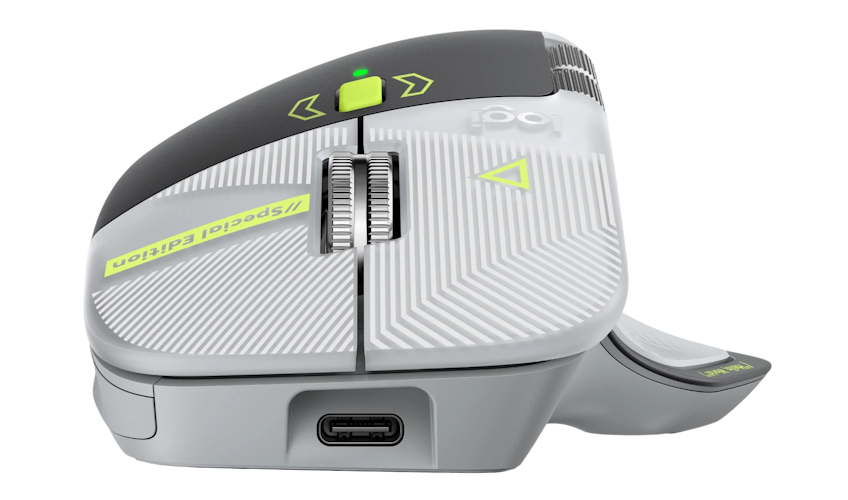
Logitech has also moved the current MX Master 4 generation toward USB-C connectivity with its Logi Bolt USB-C receiver on the business version. It’s the sort of upgrade that makes sense in 2026. USB-A hasn’t disappeared, obviously, but we’re increasingly living in a world of USB-C laptops, docks and monitors. The less dongle archaeology I have to perform behind my desk, the better.
And that’s really the story here. The connectivity doesn’t do anything exciting. It doesn’t need to. It connects, stays connected and gets out of the way. Exactly what a productivity mouse should do.
Battery anxiety? Not really
Battery life is another area where a productivity mouse should quietly stay out of the way.
The Logitech MX Master 4 Special Edition – Developer packs a 650mAh rechargeable battery, and Logitech rates it for up to 70 days of use on a full charge. Real-world battery life will naturally depend on how you’re using it, but the more impressive figure might actually be the charging speed.
According to Logitech, just one minute of charging provides enough power for around three hours of use. That’s the feature designed specifically for people like me.
You know the type. The low-battery warning appears and you immediately tell yourself, “I’ll charge that tonight.” You won’t.
Tomorrow becomes next week. Next week somehow becomes two weeks later. Then one morning your mouse dies mid-workday, and you’re frantically searching through drawers looking for a USB-C cable while questioning every life decision that led to this moment.
The MX Master 4 largely removes that drama. Even if you somehow manage to ignore the battery warning for an impressively long period of time, a quick top-up is usually enough to get you through the rest of the day.
And honestly, I can see this being a godsend for me. I so love wireless gadgets and yet so bad at actually charging them!
Final thoughts
The Logitech MX Master 4 Special Edition – Developer feels like the result of Logitech looking at an already excellent productivity mouse and asking, “What else can we add without making this thing ridiculous?” Somehow, they got away with it.
The haptics sounded unnecessary to me right up until the point I started using them. The Actions Ring seemed like another shortcut system I’d enthusiastically configure and then promptly ignore. I didn’t. Even features like the quiet clicks and the horizontal scroll wheel, things that seem minor when you’re reading a spec sheet, ended up becoming part of my daily routine remarkably quickly.
And the MagSpeed wheel? Still brilliant.
That’s probably what impressed me most about the Logitech MX Master 4 Special Edition – Developer. None of the individual features radically changes how you work. You’re still answering emails, editing documents, juggling spreadsheets and wondering why that one Teams meeting couldn’t have just been an email.The difference is that all of those little features start stacking up.
The haptics. The Darkfield sensor. The Actions Ring. The horizontal scrolling. The app-specific shortcuts. The excellent battery life. On their own, they’re nice additions. Together, they create a mouse that quietly removes friction from your workday in a way that’s difficult to fully appreciate until you go back to something more basic.
Of course, there will be people who look at the price tag and immediately decide they’ve reached the end of this review. And that’s fair.
The Logitech MX Master 4 Special Edition – Developer is a premium productivity mouse, and it’s aimed squarely at people who spend a large chunk of their day sitting in front of a computer. Developers, designers, writers, video editors, spreadsheet future world champions and anyone who regularly bounces between multiple applications and monitors. For those people, though, it makes a compelling argument for itself.
I came into this review expecting another polished update to a familiar formula. What I found was a mouse that genuinely introduced a few ideas I wasn’t expecting to care about and then somehow convinced me I didn’t want to work without them. That’s both impressive and slightly annoying. Because now I’ve become the person who has strong opinions about scroll wheels, mouse haptics and custom shortcut rings. Apparently this is who I am now.



Recent Comments