
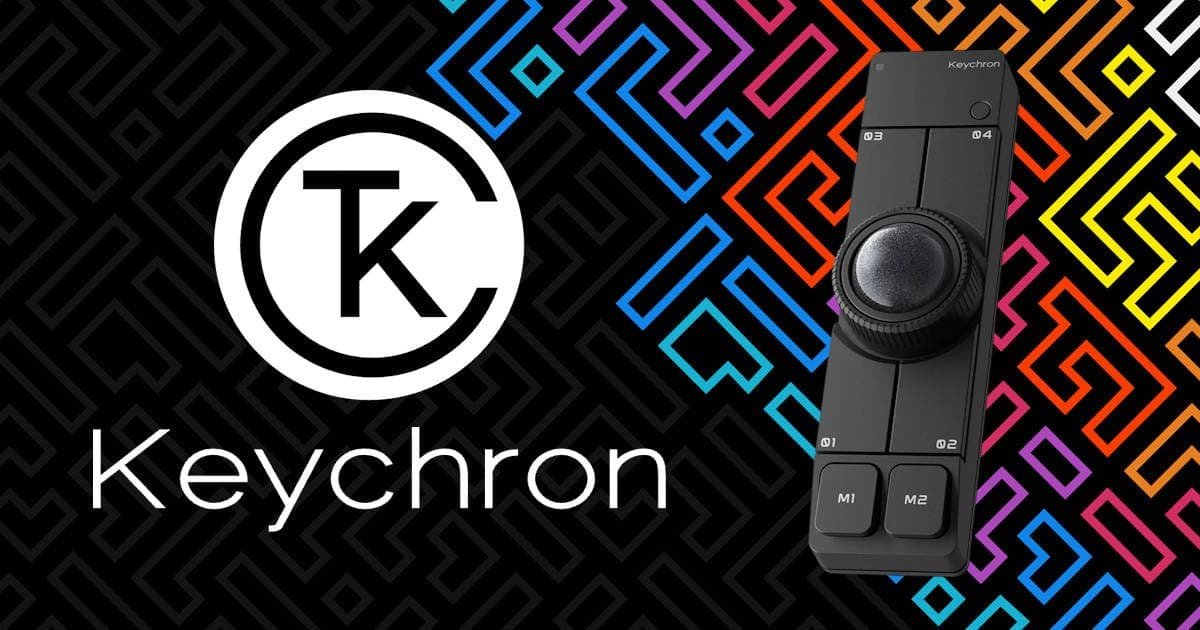
When most people look at a new mouse or trackball, they tend to judge it as a direct replacement for whatever is already sitting on their desk. That’s understandable. We have been conditioned to think of pointing devices as one-for-one swaps. If you approach the Keychron Nape Pro with that mindset, though, I think you’ll miss what makes it interesting.
After a few weeks of using it, I stopped thinking about the Keychron Nape Pro as a mouse altogether. It wasn’t competing with my daily driver ergonomic mouse, and it certainly wasn’t replacing my gaming setup. Instead, it quietly carved out its own role. One that I didn’t really know I needed until it was sitting under my keyboard.
The Keychron Nape Pro was developed in collaboration with Gizmodo Japan and draws inspiration from the open-source NAPE community project. That heritage becomes obvious the longer you spend with it. This isn’t a product trying to mimic a traditional mouse. It’s designed around a different idea entirely. The goal is to add functionality to your workspace rather than take functionality away from something else.
What surprised me most was how quickly it became part of my workflow. Initially, I expected to spend most of my time experimenting with the trackball itself. Instead, I found myself leaning on the programmable buttons, layers, shortcuts, and rotary dial. The trackball remained useful, but it almost became the secondary feature. The real appeal was having a configurable control surface sitting within thumb’s reach while my hands stayed planted on the keyboard.
For someone who spends a lot of time writing, editing, jumping between windows, managing emails, and occasionally pretending they know what they’re doing in Final Cut Pro, that convenience adds up quickly. Small actions that normally require moving a hand across the desk suddenly happen without breaking your flow. It sounds minor when you describe it, but after a few days it becomes surprisingly noticeable when it isn’t there.
That’s where I think the Keychron Nape Pro finds its niche. Not as a replacement for your favourite mouse, but as an extension of it. A compact command module that turns otherwise unused desk space into something genuinely useful. Once I started looking at it through that lens, the entire product made a lot more sense.
Design & Placement: The Space Below (or Between)
The first thing that struck me about the Keychron Nape Pro wasn’t the trackball, the software, or even the customisation. It was the size. Or perhaps more accurately, how little space it actually occupies.
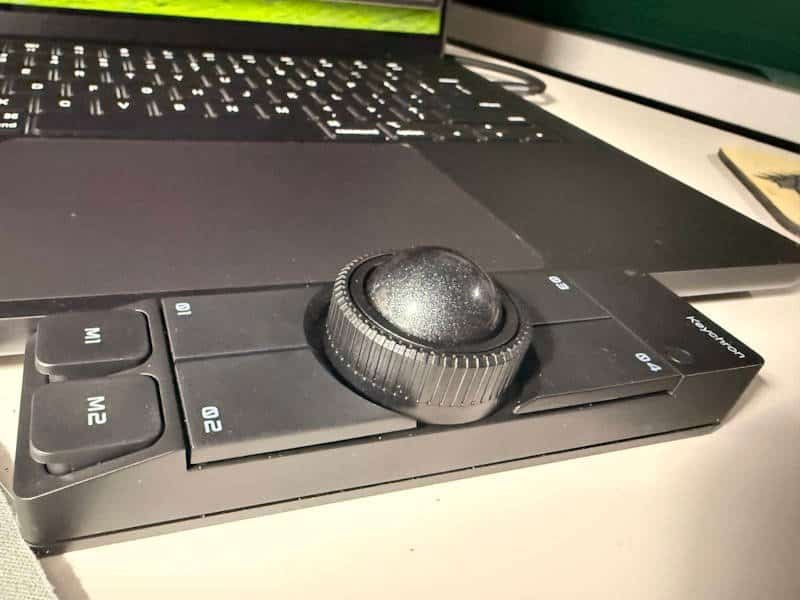
At roughly 135mm long, less than 35mm wide, and weighing just 83 grams, the Keychron Nape Pro feels surprisingly compact when you take it out of the box. I’ve reviewed plenty of desktop peripherals over the years, and most of them demand a dedicated spot on your desk. Some earn that space. Others end up feeling like clutter. The Nape Pro takes a different approach entirely. Instead of competing for valuable desk real estate, it slides into areas that would otherwise remain unused.
That became obvious once I started experimenting with placement. Under the spacebar of a standard mechanical keyboard felt surprisingly natural, almost like it had been designed to live there from the beginning. With the trackball and controls within easy reach of my thumbs, I could navigate, scroll, or trigger shortcuts without pulling my hands away from the keyboard. As someone who spends large portions of the day writing, that small change had a bigger impact than I expected.
I can also see the appeal for split keyboard users. The narrow profile means the Keychron Nape Pro fits neatly between keyboard halves, effectively turning an empty gap into a functional control surface. It’s one of those ideas that seems obvious once you’ve seen it, yet very few products are actually designed around that concept.
Even outside of traditional keyboard setups, the flexibility is impressive. During testing, I found myself moving it around regularly. Sometimes it sat beside a drawing tablet, other times next to a second keyboard used for editing. The device never felt out of place. In fact, the more unusual the setup became, the more the Keychron Nape Pro seemed to make sense.
The compact design extends to the trackball itself, which uses a 25mm ball. On paper, that might sound small, and compared to larger desktop trackballs it absolutely is. If your goal is to fling a cursor across multiple high-resolution monitors with a single movement, you’ll quickly find its limitations. That’s simply not what this device is optimised for.
What it does exceptionally well is handling precise adjustments and controlled movements. Scrubbing through a video timeline. Nudging a pointer into exactly the right spot. Making small edits without needing broad arm movements. Those tasks feel comfortable and surprisingly accurate once you settle into the workflow.
The more time I spent with the Keychron Nape Pro, the more I realised its design isn’t trying to imitate a traditional mouse. Every aspect of the physical layout feels focused on accessibility and convenience. It exists in the small spaces around your setup, both physically and functionally, quietly adding capability where there wasn’t any before. That’s a difficult thing to communicate from a specification sheet alone, but after a few days of use, it becomes one of the product’s most compelling qualities.
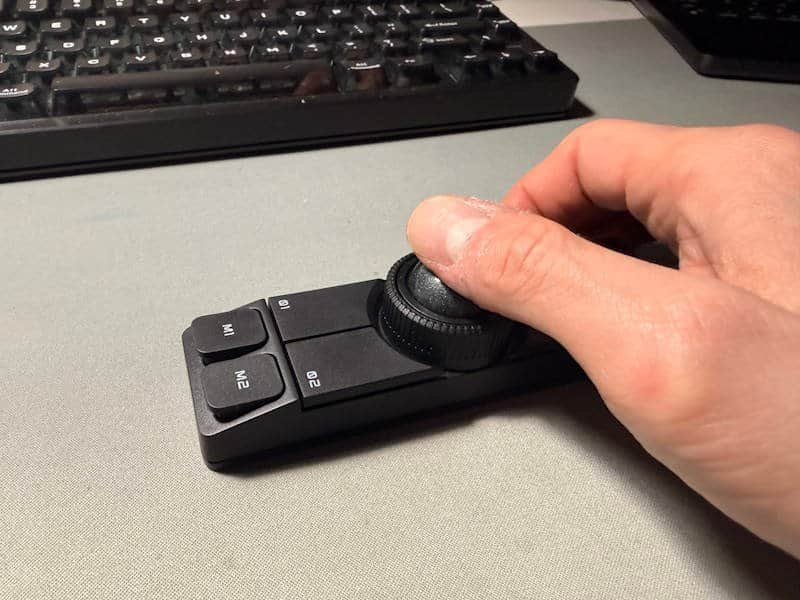
OctaShift: The Secret Weapon for Custom Placement
One of the cleverest features of the Keychron Nape Pro isn’t the trackball itself, but the freedom to place it almost anywhere on your desk.
Most trackballs are designed to sit in a single orientation. Rotate them and cursor movement quickly starts to feel wrong. Push forward and the pointer drifts diagonally. It becomes surprisingly frustrating.
The Keychron Nape Pro solves this with OctaShift, allowing you to recalibrate the device in 45-degree increments through the software. Whether the Nape Pro sits horizontally beneath your keyboard, vertically beside a tablet, or between the halves of a split keyboard, cursor movement remains intuitive and predictable.
It sounds like a small feature, but it has a huge impact on usability. During my testing, I regularly moved the Keychron Nape Pro around my desk to find the most comfortable position. Thanks to OctaShift, I never felt locked into a particular layout. The device adapts to your workspace rather than forcing your workspace to adapt to it.
After a while, it’s the kind of feature you stop noticing entirely. Everything simply works as expected. For a device built around flexibility and customisation, that makes OctaShift one of the most important features of the Keychron Nape Pro.
The Power of ZMK & Launcher Web Customisation
A big part of what makes the Keychron Nape Pro so flexible is the software that sits behind it. Powered by ZMK firmware and configured through the web-based Keychron Launcher, the entire experience feels refreshingly straightforward. There are no bulky desktop applications, no background services quietly consuming resources, and no need to install software on every machine you use.
Once your settings are saved to the Keychron Nape Pro, they live on the device itself. That means your layouts, macros, layers, and shortcuts follow you wherever the device goes. For anyone who regularly moves between a home setup, work laptop, tablet, or shared machine, that’s genuinely useful. As somebody who often jumps between multiple devices, I appreciated not having to recreate my setup every time I plugged into something new.
The Launcher itself is easy to navigate, even if you’re new to programmable peripherals. More experienced enthusiasts can go deep with custom layers and advanced behaviours, while casual users can stick to simple remaps and still get plenty of value from the device. I found myself starting with a few basic changes before gradually experimenting with more complex workflows as I became familiar with the hardware.
The Keychron Nape Pro supports up to eight configurable layers, allowing different button layouts for different tasks. You could have one layer dedicated to general navigation, another for video editing, and another entirely for productivity shortcuts. It also supports tap-and-hold functionality, where a button can perform one action when tapped and a different action when held. Once you start using it, you quickly realise how much functionality can be packed into a relatively small number of controls.
For more advanced users, combo inputs and multi-button shortcuts add another level of customisation. Complex commands that would normally require several key presses can be reduced to a single action, keeping your workflow moving without constantly reaching across your keyboard.
What I liked most, however, was that none of this felt mandatory. The Keychron Nape Pro works perfectly well with simple remapping and a handful of shortcuts. The deeper customisation options are there when you want them, and it feels very much like a device that can grow alongside your workflow rather than demanding you learn everything on day one.
In Practice: How I Configured My Workflow
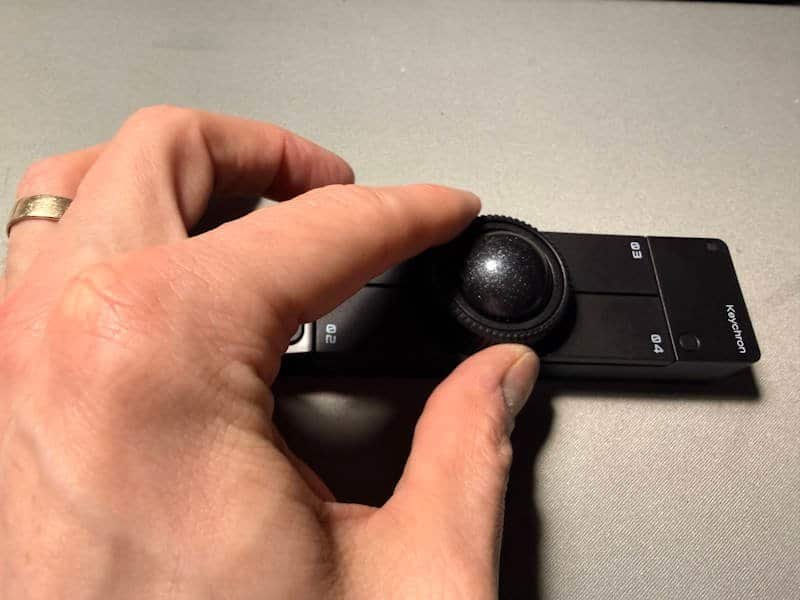
The beauty of the Keychron Nape Pro is that it doesn’t arrive with a single “correct” way to use it. The more time I spent with it, the more I found myself shaping it around my existing workflow rather than changing my workflow to suit the hardware.
For example, one of the first things I changed was the rotary dial. The default volume controls made sense, but they were redundant in my setup. My daily keyboard already has a dedicated aluminium volume knob that I use constantly, so having another one sitting a few centimetres away felt like a wasted opportunity.
Instead, I reassigned the dial to vertical scrolling, and almost immediately it became one of my favourite features.
I spend a lot of my day reading and writing. That means long documents, websites, meeting notes, research articles, product specifications, and draft reviews that seem to get longer every time I revisit them. Using the trackball to scroll works perfectly fine, but over extended sessions it can feel slightly repetitive. Assigning scrolling to the dial transforms the experience. It sits right at thumb height, and the tactile feedback makes navigating lengthy documents feel smooth and surprisingly satisfying.
My setup eventually settled into something like this:
[ Traditional Mouse ]   --->  Heavy cursor movements & precision dragging
[ Mechanical Keyboard ] --->  Primary typing + Dedicated hardware volume knob
[ Keychron Nape Pro ]   --->  Vertical scroll, layer switching & macro triggers
Why the Dial as a Scroll Wheel Works Better
One of the first changes I made to the Keychron Nape Pro was reassigning the rotary dial to vertical scrolling, and I have no desire to switch it back.
While the 25mm trackball can certainly be used for scrolling, I found it less comfortable when working through long documents, websites, spreadsheets, or research notes. Constantly flicking the ball to move up and down a page works, but over extended sessions it started to feel less efficient than it could be.
The rotary dial, on the other hand, feels purpose-built for the task. Positioned right at thumb height, it provides smooth, tactile control with far less effort. Whether I was scrolling through meeting notes at work, reading through documentation, or proofreading a review, the experience felt more natural. It reminded me a little of using a dedicated scroll wheel, except it was exactly where I wanted it rather than attached to a traditional mouse sitting elsewhere on the desk.
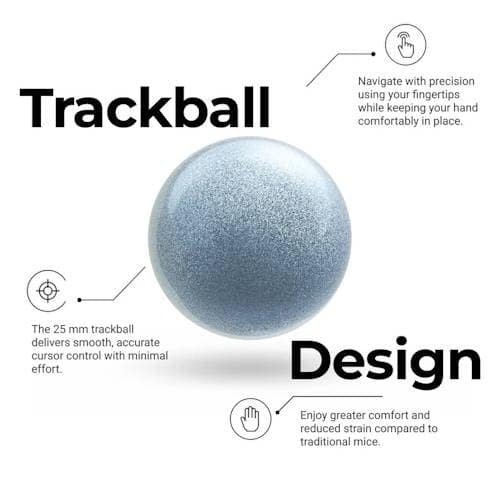
Using the Nape Pro as a Keyboard Extension
The more I used the Keychron Nape Pro, the less it felt like a trackball and the more it felt like an extension of my keyboard. Rather than reaching across the desk to trigger shortcuts or perform repetitive actions, my thumbs remain anchored near the bottom edge of the board while the Nape Pro handles secondary commands.
That currently includes:
- Thumb Clicks: The low-profile, quiet switches are perfect for common actions such as window management, workspace switching using
Cmd/Ctrl + Arrow, and taking screenshots. These are tasks I perform regularly throughout the day, so having them within easy reach quickly became second nature. - Macro Execution: Holding one of the primary buttons temporarily shifts to another layer, transforming the surrounding controls into app launchers, media controls, or custom shortcuts. I’m still refining my layouts, but the flexibility here is impressive.
What surprised me most is how quickly these small conveniences become habits. None of the individual actions save a huge amount of time on their own, but they help maintain focus. Instead of constantly moving between keyboard, mouse, and shortcut combinations, the Keychron Nape Pro keeps many of those controls in one accessible location. After a week or two, it starts to feel like it was always meant to be there.
The New User Experience
As a long-time traditional mouse user, diving headfirst into a trackball design comes with a genuine learning curve, and it is unashamedly steep.
If you’ve spent decades letting muscle memory dictate how your entire arm glides across a desk, switching to thumb- or finger-driven precision feels almost counter-intuitive for the first few days.
The Trackball Learning Curve
- The First 48 Hours (Frustration Phase): Your brain constantly prompts your arm to move the body of the device. Realising the device stays entirely stationary while a single digit handles the cursor takes active focus. You will overshoot targets, miss small close buttons, and feel noticeably slower than usual.
- Days 3 to 7 (Fine Motor Calibration): Fine precision—like selecting a single line of text or landing micro-clicks—requires training thumb or finger muscles that simply haven’t done high-DPI tracking before. Adjusting cursor sensitivity down in the early days is essential to avoid jittery movements while building muscle memory.
- Week 2 Onward (The Click Point): The muscle memory locks in. Navigating across monitors suddenly requires effortless thumb flicks rather than sweeping arm motions, and the ergonomic payoff of zero wrist travel starts making absolute sense.
Tips to Ease the Transition
- Dial Down the DPI: Lower your tracking sensitivity initially. It’s far easier to build control with a slower cursor and scale up speed once your thumb gets steady.
- Keep Your Main Mouse Nearby (At First): If you are doing fast-paced gaming or time-critical editing, allow yourself to switch back temporarily rather than building frustration during peak focus hours.
- Anchor Your Hands: Let the stationary nature of the device work for you by keeping your wrist completely relaxed on the desk or palm rest.
Pros & Cons
What Works Great
- Minimal Wrist Fatigue: Keeps your hands within the key cluster footprint, cutting down on repetitive hand-to-mouse travel.
- Tri-Mode Connectivity: Smooth switching between 2.4GHz wireless, Bluetooth 5.2 (up to 3 devices), and USB-C wired mode.
- Quiet Switches: Damped micro-switches keep desktop operation whisper-quiet in office or late-night environments.
- True Hardware Portability: ZMK settings save straight to the hardware; plug and play anywhere.
Room for Improvement
- Plasticky Rotary Dial: The outer control ring lacks a heavy metallic weighting; it feels lightweight and somewhat plastic-heavy out of the box.
- Ball Size Limits Primary Tracking: The 25mm trackball requires high DPI settings (up to 4000 available, though 1200–1600 is the sweet spot) or software acceleration to cover large displays comfortably.
- Requires a Learning Curve: Re-mapping muscle memory for layers and custom orientation takes a few days of active use to feel natural.
The Verdict
If your goal is to replace your primary mouse, especially if you work across large multi-monitor setups or rely on fast, sweeping cursor movements, the 25mm trackball may feel limiting. It can certainly handle cursor control, but that’s not where this device feels most at home.
What became clear during my time with the Keychron Nape Pro is that it was designed to complement your existing setup rather than replace it. Once I stopped viewing it as a mouse and started using it as a dedicated workflow tool, everything clicked into place.
The compact footprint, flexible placement options, OctaShift calibration, onboard ZMK customisation, programmable layers, and rotary dial all work together to create something that feels genuinely different from most peripherals on the market. Whether it was scrolling through lengthy documents, triggering shortcuts while writing, switching workspaces, or experimenting with macros for Final Cut Pro and Pixelmator Pro, the Keychron Nape Pro consistently found ways to make small, repetitive tasks feel more convenient.
What I appreciate most is that it doesn’t demand a complete overhaul of how you work. You can start with a couple of simple shortcuts and gradually build a workflow around it. That’s exactly what happened to me. A few button remaps turned into custom layers, then macro experimentation, and before long the device had become a permanent fixture alongside my keyboard.
I also suspect keyboard enthusiasts, productivity-focused users, and anyone who spends long hours at a desk will get the most from the experience. The Keychron Nape Pro feels particularly well suited to people who enjoy refining their setup and finding small efficiencies throughout the day. Those tiny improvements might seem insignificant individually, but they add up surprisingly quickly.
The longer I used the Keychron Nape Pro, the less I noticed the device itself and the more I noticed the convenience it brought to my workflow. To me, that’s usually a sign of a well-designed peripheral. It quietly settles into your routine and earns its place on the desk without demanding attention.
If you have a mechanical keyboard, enjoy customising your workspace, and like the idea of transforming otherwise unused desk space into something genuinely useful, the Keychron Nape Pro is an easy recommendation.
You can pick up the Keychron Nape Pro and save 10% using the code DezDoes at checkout, or purchase through our affiliate link.


Recent Comments