
Being a fairly recent convert to MacOS, I’ve found myself constantly poking around, trying to uncover little tips and tricks to make the experience smoother. It’s part curiosity, part survival instinct, especially when you’ve spent years in a PC-centric world where muscle memory does most of the work for you.
Switching between systems isn’t exactly seamless either. My other job still runs on Windows, which, let’s be honest, doesn’t help when you’re trying to retrain your brain. I’ll be halfway through a task and suddenly hit Ctrl instead of Command. It’s a process.
Anyway, I’ve gathered a few things that helped me along the way. If you’re new to MacOS, maybe these will help you too. And if you’re a seasoned user, perhaps you’ll stumble on something fresh—or at least nod knowingly at the chaos.
Keyboard Shortcuts and Gestures: The Essentials
Let’s start simple. Keyboard shortcuts. They’re not just convenient—they’re essential. I’d argue they’re the fastest way to feel like you actually know what you’re doing.
Sure, Command + C and Command + V are the classics. But once you get comfortable, try Command + Tab to flip between open apps. Or Command + ` (that little grave accent) to switch between windows of the same app. It’s subtle, but it makes a difference.
Then there’s the trackpad. Honestly, it’s kind of brilliant. Four-finger swipe up for Mission Control, side swipes to move between desktops. It feels intuitive once you get the hang of it. You can tweak these gestures in System Settings too, which I recommend doing early on—before your fingers get too used to the defaults.
Spotlight: More Than Just Search
Spotlight (Command + Space) is one of those features that feels minor until you realise how much it can actually do.
You can launch apps, find files, do quick calculations (like 45 * 105), convert currencies (100 USD to AUD), and even look up definitions. It’s fast, clean, and surprisingly powerful.
Compared to Windows search? I think Spotlight still wins. Although, to be fair, Windows has been catching up. But Spotlight just feels… sharper.

Quick Look: A Quiet Hero
This one’s underrated. Select a file in Finder, hit Space, and boom—instant preview. No need to open anything. It works with images, PDFs, videos, documents… most things, really.
For me, this is a lifesaver. I have what I’d call a “bucket system” for storing article images. It’s not elegant. So when I need to find “Mac Tip 348” and my editor’s hovering, Quick Look saves me from opening 20 files just to find the right one.
Automator and Shortcuts: Automate the Boring Stuff
If you’re doing repetitive tasks, Automator or Shortcuts can help. You don’t need to know how to code—just drag and drop actions to build a workflow.
You can rename batches of files, merge images into a PDF, or set up custom shortcuts. I haven’t used this much myself (yet), but every time I think about my chaotic image folder, I feel like I should.
Maybe next week.
Hot Corners: Surprisingly Handy
Hot Corners are one of those features you don’t think you need until you try them.
Go to System Settings > Desktop & Dock > Hot Corners. You can assign actions to each corner of your screen. I’ve set mine up for Quick Notes, Mission Control, and Notification Centre. That leaves one corner free… not sure what I’ll use it for yet.
It’s a small thing, but it adds a nice rhythm to how you move around the system.

Keep Your Mac Running Smoothly
Performance matters. A cluttered Mac will slow down eventually, no matter how shiny it looks.
Check your storage under Apple Menu > System Settings > General > Storage. Use Activity Monitor (Applications > Utilities) to see what’s hogging resources. And don’t forget to clean up your desktop and login items.
I made a promise when I got my Mac in January 2025: I would no longer save files to the desktop. So far, I’ve stuck to it. Just the weather app lives there. Proof? See image. (Assuming I remembered to attach it.)
Customising the Dock and Menu Bar
The Dock is central to the Mac experience. Rearranging apps is easy, just drag them around. If you don’t use something often, drag it out and it’ll disappear with a satisfying little puff.
In System Settings > Desktop & Dock, you can change its size, position, and enable magnification. I personally hide mine to keep things clean. You can do that by toggling “Automatically hide and show Dock.”
Same goes for the menu bar. Keep only what you need. It’s less distracting that way.
Take Screenshots with More Control
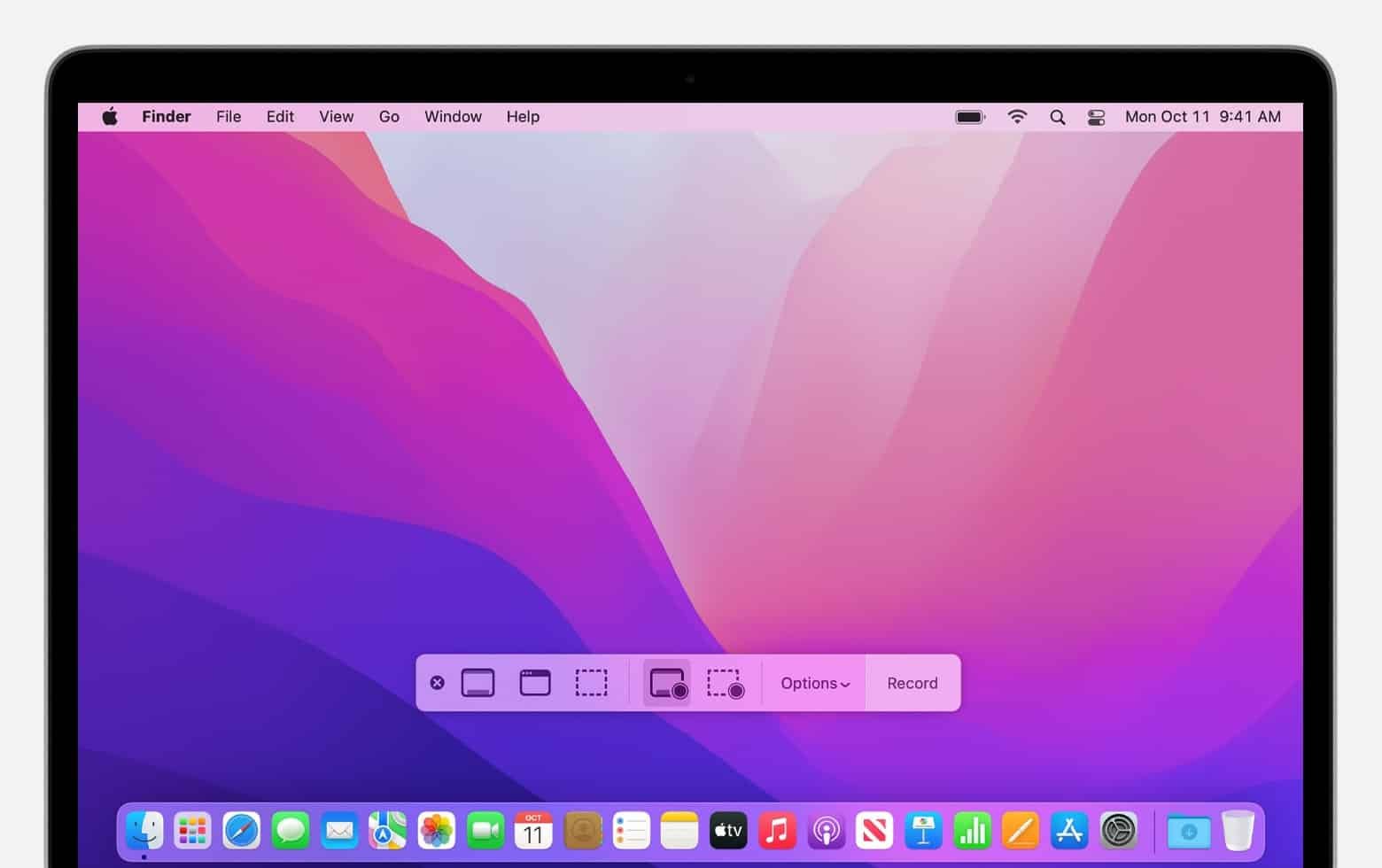
The basics, Command + Shift + 3 for full screen, Command + Shift + 4 for a selected area are solid. But if you want more control, Command + Shift + 5 is where things get interesting.
That shortcut opens a screenshot toolbar. You can choose to capture the entire screen, a window, a selection, or even record a video. It’s surprisingly flexible.
Honestly, it took me a while to get my head around all these shortcuts. I had to look them up again while writing this. But once they clicked, it changed how I work. Screenshots are faster, cleaner, and just… easier. Compared to the Windows snipping tool? No contest.
Feel free to copy these commands and stick them somewhere visible. If you’re anything like me, you’ll forget them at least twice before they become second nature.
Create Custom Keyboard Shortcuts
Sometimes an app doesn’t offer a shortcut for something you use all the time. That’s annoying—but fixable.
Head to System Settings > Keyboard > Keyboard Shortcuts > App Shortcuts. Click the plus button, choose the app, and type in the exact name of the menu command you want to shortcut. Done.
There’s a rabbit hole here. The number of shortcuts you can use out of the box is already impressive, but creating your own? That’s next-level. Depending on your workflow, this can shave off minutes or hours over time.
Honestly, this could be its own article. If you’re curious, Apple has a full list on their site. Worth a look.
Use Multiple Desktops (Spaces)
If your screen starts feeling cluttered, Spaces can help. It’s like having multiple virtual workspaces.
Swipe up with four fingers (or hit F3 for Mission Control), then click the plus icon in the top-right to add a new desktop. You can drag windows between them and organise by task, project, or mood—whatever works.
I do this all the time. Right now, this article lives on its own desktop. My notes and research are on another. It’s a clean space to write, but I can swipe over and dive into the chaos when needed. It’s oddly satisfying

Utilise the Mac’s Built-in Dictation
Dictation is one of those features you forget exists—until you need it.
Enable it via System Settings > Keyboard > Dictation. Once it’s on, just press the Fn key twice to start speaking. It’s great for emails, notes, or when your hands are busy (or tired).
I mostly use it on my phone, especially in the car. It’s surprisingly accurate, even with my Aussie accent. Though, yeah, it struggles with slang sometimes. Fair enough. We invent a lot of weird words.
Quickly Sign Documents in Preview
No need for third-party apps to sign PDFs or images. Preview has you covered.
Open the file, click the Markup icon (looks like a pen in a circle), then hit the Sign icon. You can add a signature using your trackpad, camera, or even your iPhone or iPad.
This feature is a lifesaver. These days, printers feel like museum pieces. So, being able to sign a school form or bank doc without printing anything? That’s gold. Honestly, this tip deserves to be higher up.
Enable Dark Mode
Dark Mode isn’t just about aesthetics—it’s easier on the eyes, especially at night.
Go to System Settings > Appearance and choose Light, Dark, or Auto. Personally, I flip between modes depending on the day. Sometimes I want the brightness; other times, I need the calm.
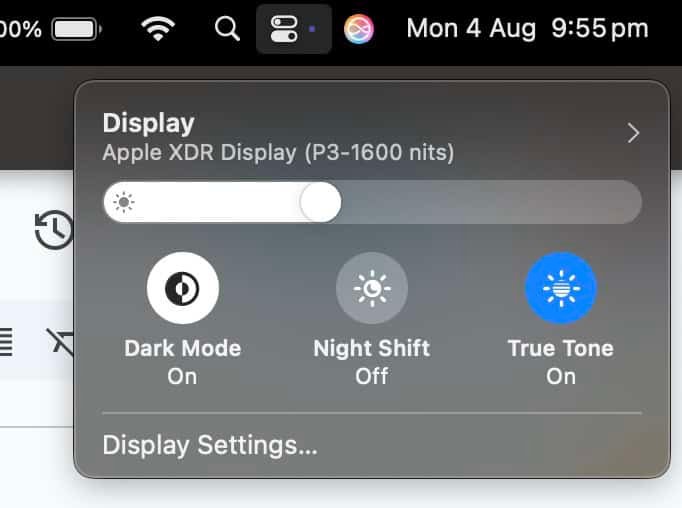
The Control Centre (top right of your screen) makes switching easy. Click the arrow under Display, and you’ll find quick toggles for Dark Mode, Night Shift, and True Tone. Handy.
Use Continuity Features
If you’ve got an iPhone or iPad, your Mac can do some pretty slick things.
You can copy something on your phone and paste it on your Mac. Answer calls and texts from your computer. Even use your iPhone as a webcam. Just make sure all devices are signed into the same Apple ID and have Bluetooth and Wi-Fi turned on.
This still blows my mind. Just today, Kelly from DezDoes sent me a link on my phone. I copied it, switched to my Mac, and pasted it straight into my browser. No apps, no syncing, no fuss. It just worked.

Install and Use Homebrew
If you’re comfortable with the command line, Homebrew is a powerful tool.
It’s a package manager that lets you install and manage open-source software that isn’t in the App Store. Think of it as a gateway to the nerdier side of MacOS.
I’ll admit, I haven’t ventured far into this territory. It feels a bit advanced. But there’s a whole community out there doing incredible things with it. If you’re curious, it’s worth exploring.
What have I missed? I know there are more than 15 things I use regularly and I’m still discovering new ones.
Hit me up with your tips or tricks on Threads @rothtar




Recent Comments